Copy feature flags across project environments
Overview
This topic explains how to copy feature flags across different project environments within your organization.
Copy Feature Flags
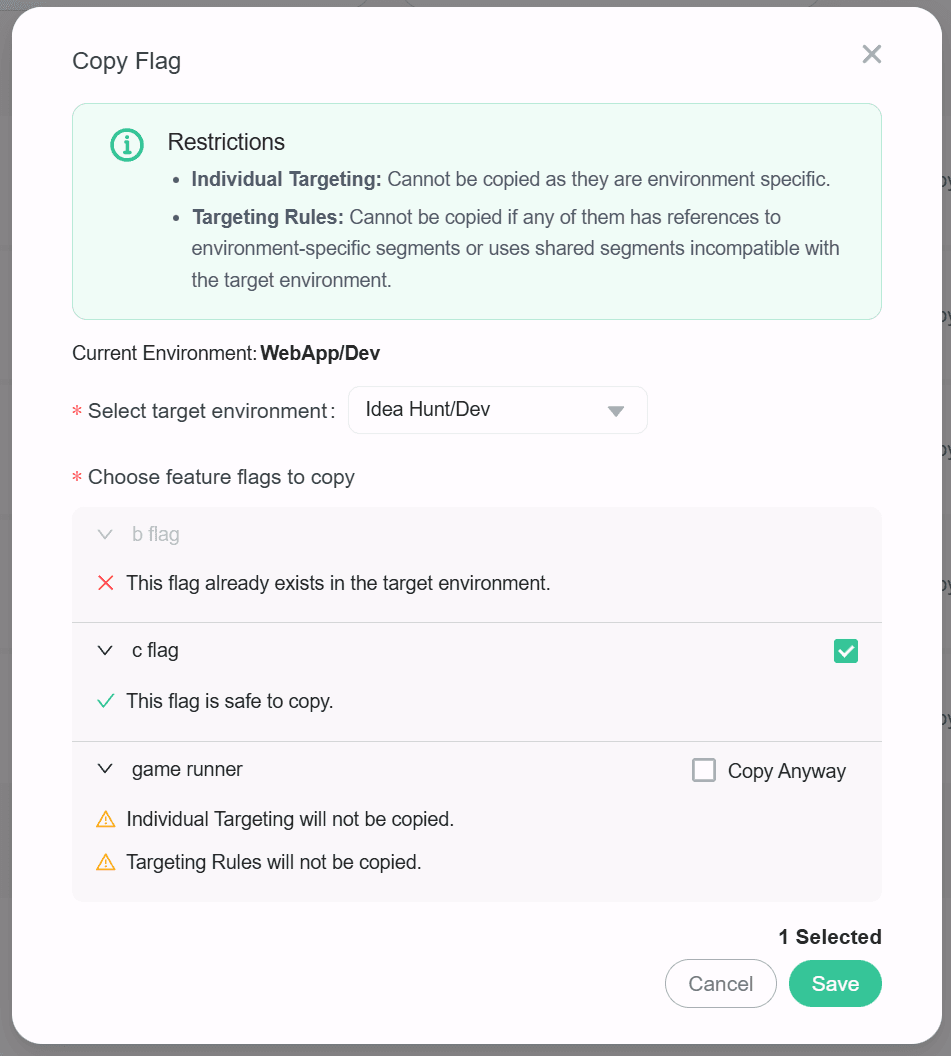
In the flags list page, click the Copy To action button and then the dialog shows up:
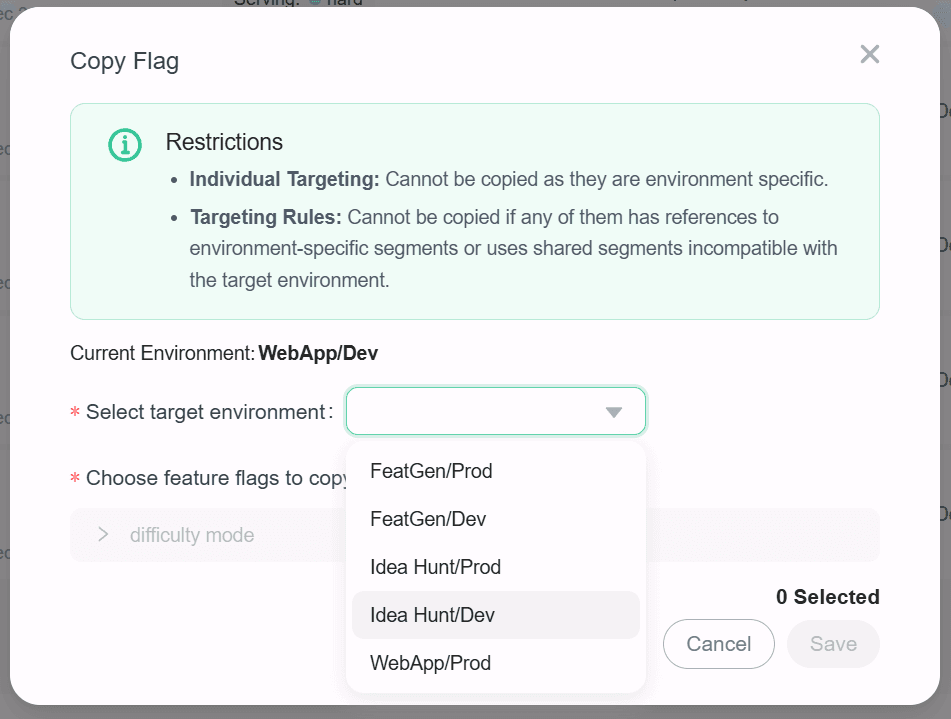
After that, choose the target environment to which you want to copy the flag, a precheck will then be done to make sure if we can fully copy the flag to the target environment
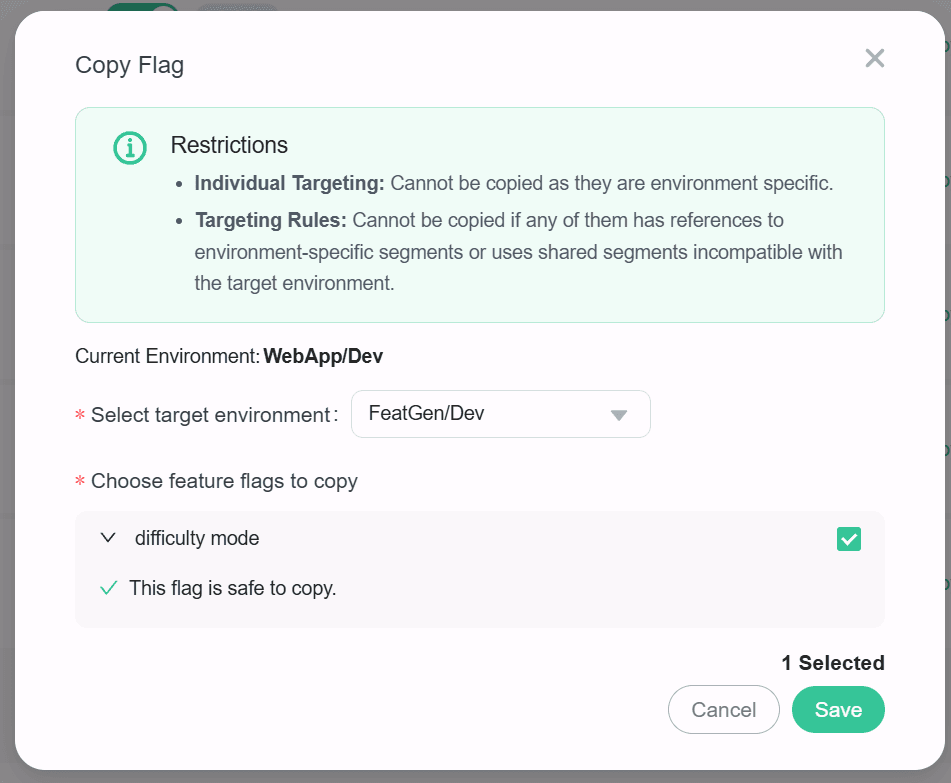
If there is no issue to you, click the Save button to confirm, and the feature flag will be copied to the target project environment.
Batch Copy
Select the flags you want to copy from the flags list. Then, click the Batch Copy To button, as shown below:
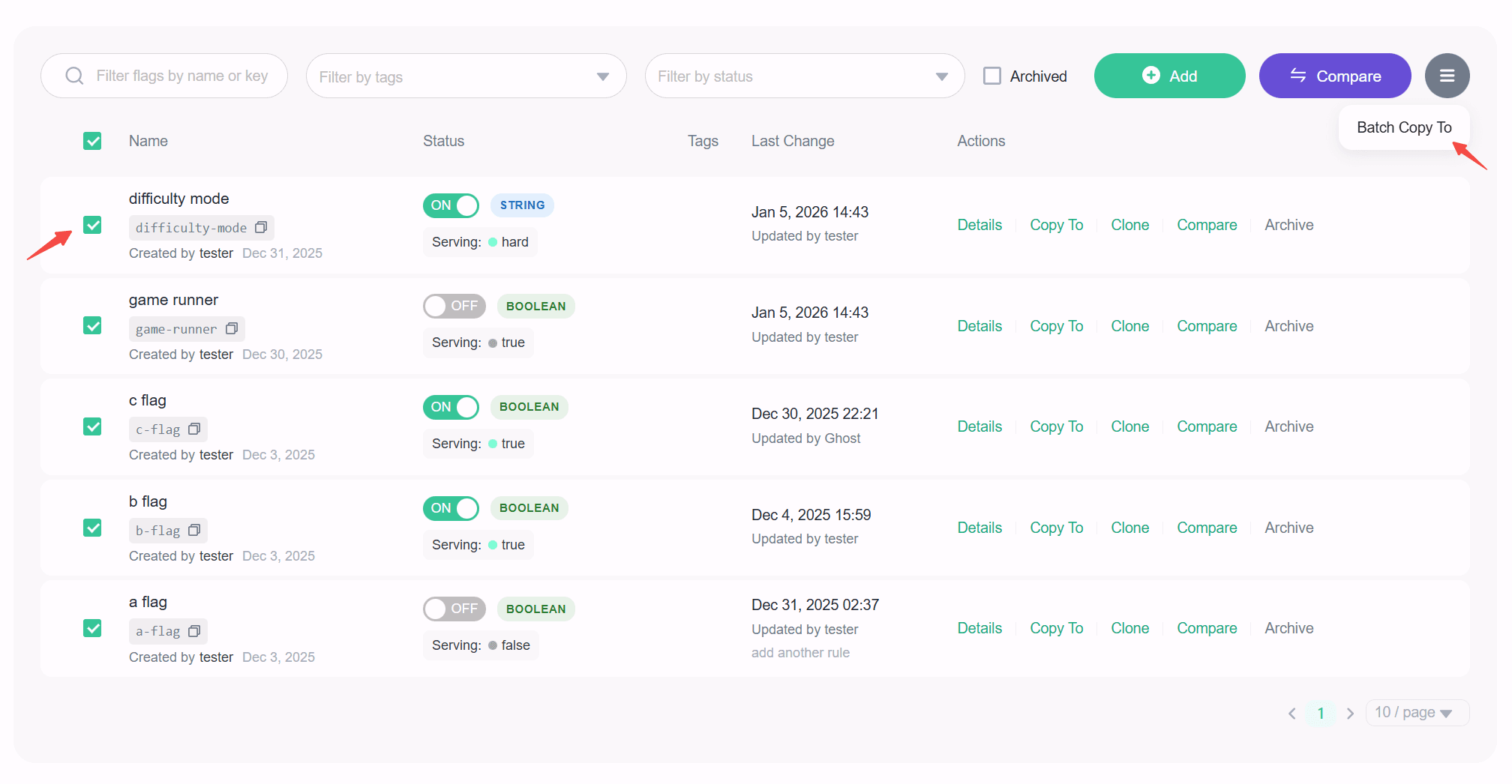
Choose the target environment to which you want to copy the flags. Then, check the flags you want to copy. Once you've made your selections, click the Save button.
Current Restrictions
Certain scenarios will prevent fully copying feature flags:
- Duplicate Keys: A flag cannot be copied if the target environment already contains a flag with the same key.
- Individual Users: Individual user targets cannot be copied because user data is environment-specific.
- Restricted Shareable Segments: Targeting rules cannot be copied if the flag references a shareable segment, but the scope of that shareable segment does not contain the target environment.
- Environment-Specific Segments: Targeting rules cannot be copied if the flag references an environment-specific segment.
As shown below, a warning message will appear if you attempt to copy a feature flag that has one or more of these restrictions.